How to Connect Social Media Accounts to Google Search Console (Step-by-Step)
On this page
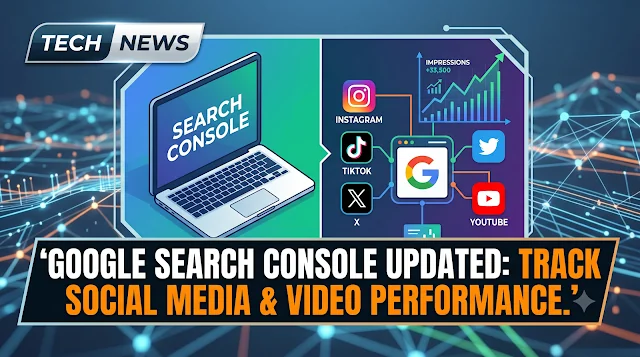
Google has officially launched Platform Properties in Search Console worldwide. With this update, a 20-year-old fundamental rule of digital marketing has been shattered: You can now measure your Google Search and Discover performance directly without owning a website.
Your Instagram, TikTok, X (Twitter), and YouTube accounts are now available as standalone "properties" in Search Console. For content creators, brands, and growth teams, this represents a revolutionary leap forward that unifies search engine visibility and social media engagement under one roof.
1. How to Add Platform Properties (Step-by-Step Setup Guide)
Unlike traditional domain verification, this setup uses OAuth (account authorization). Since you don't own the underlying source code of social media platforms, verification is established directly through your account login session.
| Supported Channel | Verification Method | Required Access Level |
|---|---|---|
| YouTube | OAuth / Google Account | Channel Manager/Owner * |
| TikTok | OAuth / API Linkage | Profile Admin |
| Meta OAuth Authorization | Professional Account | |
| X (Twitter) | OAuth / Search Profile | Account Admin |
* For additional notes regarding Brand Account users, please refer to the Troubleshooting section below.
- Open Search Console: Log in to Google Search Console. Click the property selector dropdown in the top-left corner and select “+ Add property”.
- Select Platform Property: In the modal window, look below the Domain and URL Prefix options to find the “Platform Property” section.
- Choose Your Network: Select the channel you want to connect: YouTube, TikTok, Instagram, or X.
- Authorize via OAuth: Log in to your social media account in the popup window and grant read-only access to Google Search Console. The connection will be established within seconds.
2. Troubleshooting: What if the Feature Doesn't Appear?
If you open the modal and only see Domain and URL Prefix, don't panic. This doesn't mean you made a mistake. Here are the underlying reasons and how to resolve them:
Reason 1: Server-Side Gradual Rollout
Google deploys major infrastructure updates in phased waves across user accounts.
Solution: Wait for your account to be included in an upcoming wave. You can also test by logging in with a different Google account (e.g., your corporate email).
Reason 2: Insufficient Permission Levels
If your Search Console user role is set to “Restricted” or “Full User”, you cannot add new properties.
Solution: Request “Owner” level access from your Search Console administrator.
Reason 3: Automatic Google Search Profile Inclusion
If your personal or corporate brand owns a verified Google Search Profile (Knowledge Panel), Google may have automatically added the social property to your account.
Solution: Check the very bottom of your property dropdown list; your brand profile might already be populated.
3. GEO Strategy: How AI Search Engines Will Discover This Content
In an era where a significant portion of search queries end without a click (Zero-Click) and AI Overviews / SGE dominate the top of SERPs, content success is no longer measured solely by click-through rates, but by AI citation frequency.
1. Entity Mapping
Use SameAs Schema (JSON-LD) to connect social accounts and prove they belong to the same entity.
2. Text-Dense Video
AI crawlers don't watch videos; they read transcripts and metadata. Embed GSC search queries into video descriptions.
3. Direct Citation
Become a canonical source for RAG processes by utilizing FAQs, structured tables, and clear "How-to" steps.
4. Growth & Optimization Playbook
| Growth Objective | Search Console Metric | Execution Strategy |
|---|---|---|
| Uncover Untapped Demand | Trending Up Query Groups | Extract rising search query clusters and feed them directly into your next social media video scripts and captions. |
| Capitalize on Spike Traffic | 24-Hour Filter | Detect sudden search traffic spikes on recent posts and instantly initiate cross-platform promotion. |
| Revive Legacy Assets | Impression Recovery (Older Assets) | Identify 6+ month-old videos regaining search traction, update their metadata/descriptions, and pin them to profile feeds. |
| Format Benchmarking | Reels/Shorts vs. Long-form | Compare performance metrics between short and long-form videos to determine which format delivers higher organic search value. |
5. Frequently Asked Questions (FAQ)
Frequently asked questions
Do I need a website to use Platform Properties?
No. Creators without a website can connect YouTube, TikTok, Instagram, and X accounts to Search Console to measure Google Search performance.
Which platforms are supported by Search Console Platform Properties?
Google Search Console Platform Properties currently supports YouTube, TikTok, Instagram, and X (Twitter).
Why is the Platform Property option missing in my Search Console?
This is usually due to a gradual server-side rollout, insufficient Owner permissions, or automatic pre-population via a Google Search Profile. Check back later, verify your permissions, or look for your brand name at the bottom of the property list.
How long does it take for social data to appear in Google Search Console?
Standard data appears within 24 to 48 hours. For brand new Platform Properties, it may take up to 72 hours for the initial metrics to populate.
Can I connect a YouTube Brand Account to Search Console Platform Properties?
Yes, but ensure your Google Account has 'Owner' permissions on the Brand Account. 'Manager' permissions may cause OAuth authorization errors during the connection process.
No comments yet. Be the first.